Downloadable Files
You can download Split Screen Tool for Final Cut Pro for free from the end of this page.
Instantly Build Professional Split Screen Layouts
Creating a clean split-screen effect manually in Final Cut Pro can be more time-consuming than it looks. Positioning clips precisely, keeping both sides aligned, and maintaining a balanced composition often require multiple adjustments before everything looks right.
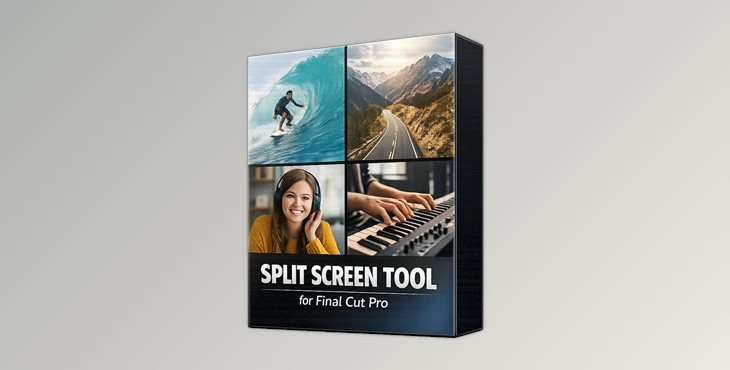
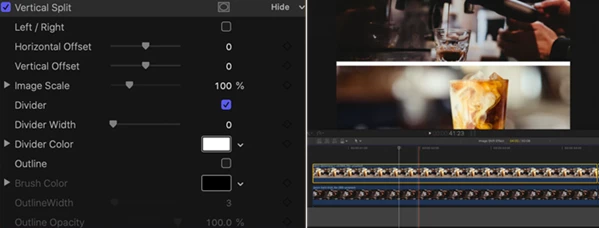
Split Screen Tool for Final Cut Pro simplifies this entire process. Instead of manually resizing and positioning every clip, you simply place two video clips on top of each other in the timeline, apply the Split Screen effect to the upper clip, and instantly get a polished split-screen layout.
Whether you’re producing comparison videos, interviews, tutorials, reaction content, or product showcases, Split Screen Tool for Final Cut Pro helps you build professional-looking split screens in just a few clicks.
What Is a Split Screen Effect?
A split screen is a video editing technique that displays multiple video clips simultaneously within the same frame. Instead of switching between shots, viewers can watch two perspectives at once, making content more engaging and informative.
This editing style is widely used for:
- Before and after comparisons
- Interview videos
- Product demonstrations
- Tutorial videos
- Gaming comparisons
- Reaction videos
- Music performances
- Social media content
Displaying multiple viewpoints at the same time improves storytelling, keeps viewers engaged, and makes visual comparisons much easier to understand. Rather than cutting back and forth between clips, the audience receives all the important information in one clean composition.
A Faster Way to Create Split Screens
The Split Screen Tool for Final Cut Pro was created for editors looking to create split screen videos quickly and easily. This editing plugin will automate the process of creating split screens within your projects.
All you have to do is:
- Place two video clips on your timeline.
- Position one video clip above the other.
- Apply the Split Screen effect to the uppermost video clip.
- Within seconds, your split screen will be ready for editing.
This split screen tool saves editors time that would usually be spent positioning video clips manually. It also ensures that editors produce split screen edits that are balanced and look good on screen.
Features
Automatic Split Screen Creation
Generate a professional split-screen layout with only two clips and a single effect. This removes the need for manual positioning and alignment.
Why it helps
Less manual work means faster editing and more consistent results across multiple projects.
Vertical Split Screen
Create a classic left-and-right composition that’s perfect for comparisons, interviews, gameplay videos, and before-and-after edits.
Real-world example
Show original footage on one side while displaying the color-graded version on the other for easy visual comparison.
Horizontal Split Screen
Quickly divide the frame into top and bottom sections for tutorials, demonstrations, or dual-camera presentations.
Real-world example
Display the instructor on the upper half while showing the screen recording underneath.
Simple Timeline Workflow
No complicated setup is required. Just stack two clips and apply the effect.
Why does it improve editing
A straightforward workflow minimizes setup time, allowing editors to focus more on storytelling and creative decisions.
Optimized for Final Cut Pro
Built specifically for Final Cut Pro, the plugin integrates naturally into your editing workflow without unnecessary complexity.
Lightweight Plugin Package
The package includes two ready-to-use effects:
- Split Screen Vertical
- Split Screen Horizontal
Editors can immediately choose the layout that best fits each project.
Compatible with 16:9 Projects
The plugin is designed for standard 16:9 footage and projects, making it ideal for YouTube videos, presentations, online courses, promotional content, and many other common video formats.

Tips for Better Split Screen Results
Choose Clips with Similar Brightness and Color Balance
Using clips that have similar brightness and color settings will allow your split screen videos to look more professional.
Position Clips to Evenly Feature Subjects of Interest
Do not place subjects of interest close to the middle of the screen when creating split screen edits. This can create an uneven composition.
Use Similar Camera Angles
Matching perspectives makes split-screen videos look more natural and easier to watch.
Keep Motion Balanced
If one side contains fast movement while the other remains static, the composition may feel uneven. Similar movement on both sides creates a smoother viewing experience.
Choose the Right Orientation
Use vertical layouts for side-by-side comparisons and horizontal layouts when stacking two different viewpoints.
Final Thoughts
The Split Screen Tool for Final Cut Pro will help editors who produce split screen videos. This tool will eliminate the repetitive manual steps editors must take to position their video clips correctly. With a couple of clicks, editors will have a split screen video ready for export.
The Split Screen Tool for Final Cut Pro has a simple editing workflow that will work for editors of all experience levels. This editing plugin makes creating split screen edits as fast and easy as possible, so editors can create professional videos for their social media and other media platforms. For these reasons, this editing plugin is definitely worth a try.

Files Password : gfxplugin.com OR 123456