Downloadable Files
You can download the CloudLight plugin for free at the end of this page.
Create Beautiful Clouds Directly Inside After Effects
Adding realistic-looking clouds to a project created within After Effects usually requires the use of external resources to obtain those clouds. This can often lead to difficulties when attempting to fully integrate those clouds into a composition, as well as slow the creative process of building that composition altogether.
CloudLight offers an easier way to add clouds to compositions within After Effects. The plugin will automatically generate clouds based upon the light sources that are established within a composition. Whether building a cinematic project, a motion graphic, a fantasy environment, or even a title sequence, CloudLight will make adding clouds to a composition an easy task.
What Is CloudLight and Why Is It Useful?
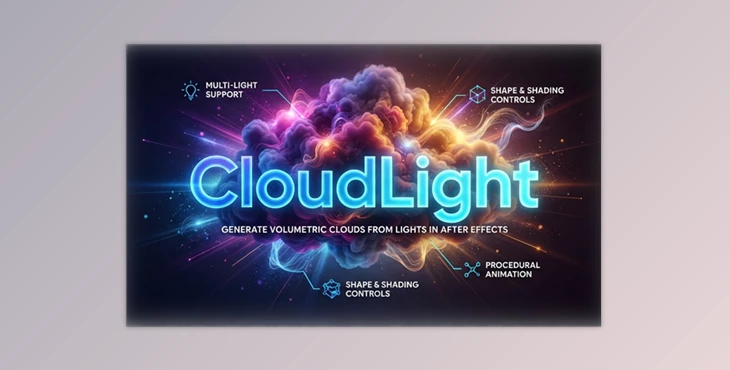
CloudLight is a plugin for After Effects that will generate volumetric-looking clouds based upon the use of light layers within the project. Each light layer will have associated clouds that can be edited and moved within the composition.
Some of the benefits of using CloudLight include the ability for the clouds to:
- Be positioned within a composition
- Multiple light layers will allow for the creation of more complex cloud formations
- The randomization function will automatically create realistic-looking clouds
- The built-in shading tools will add realism to the clouds
- The procedural textures mean there is no need for any external cloud texture images
- Generated clouds can be edited at any point in the composition, from start to finish.
Meet CloudLight
CloudLight is for those who would like more control over the generation of clouds that are directly within After Effects. This plugin is for those who work with motion graphics, visual effects, titles, animation studios, and those who create content for social media.
Features
Procedural Cloud Generation from Lights
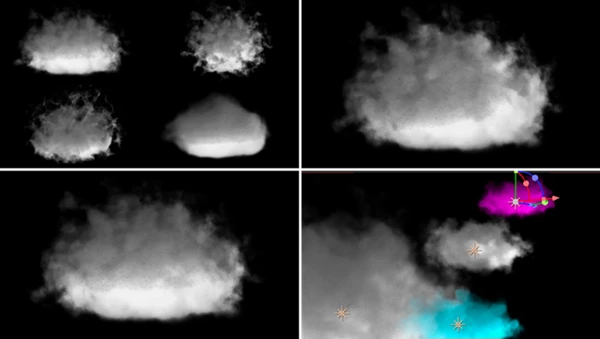
Generate clouds directly from After Effects light layers. Simply add lights, position them where you need, and CloudLight creates editable cloud formations automatically.
Support for Multiple Lights
Build large cloud systems using multiple light sources. Each cloud can have its own characteristics, while randomization creates natural variation between them.
Detailed Cloud Shape Controls
Fine-tune the size, softness, density, and overall cloud structure to match different weather conditions or artistic styles.
Advanced Cloud Shading
Adjust shading parameters to give clouds greater depth, volume, and visual realism without requiring complicated compositing.
Simple Animation
Animate cloud movement easily using familiar After Effects workflows, making it ideal for cinematic fly-throughs, animated skies, and dynamic backgrounds.
Texture and Surface Customization
Modify the cloud texture and overall appearance to create everything from soft fluffy clouds to dramatic storm formations.
Multiple Billow Patterns
Choose from different procedural billow styles to quickly achieve unique cloud shapes without rebuilding your composition.
Blend Modes for Overlapping Clouds
Cloud overlap remains visually clean thanks to selectable blend modes, allowing layered cloud systems to look more natural.
Complete Transform Controls
Freely move, rotate, and scale generated clouds so they fit perfectly into any scene or camera angle.
Ideal for Many Creative Projects
CloudLight works especially well for:
- Cinematic intros
- Motion graphics
- Fantasy environments
- Matte painting support
- Sky replacements
- Animated title sequences
- Commercial videos
- Music videos
- Landscape animations
- Atmospheric visual effects
Tips for Better-Looking Clouds
Getting realistic clouds doesn’t require complicated settings. A few simple techniques can make a noticeable difference.
- Use multiple light sources instead of one to create layered cloud formations with greater depth.
- Add subtle animation rather than fast movement, since clouds naturally drift slowly across the sky.
- Experiment with randomization until each cloud feels unique instead of perfectly repeated.
- Adjust shading carefully to match the lighting direction of your scene for a more believable result.
- Mix different billow patterns to avoid repetitive cloud shapes across large environments.
- Blend overlapping clouds using appropriate blend modes for smoother transitions.
- Scale clouds differently throughout the scene to create a stronger sense of distance and perspective.
These small adjustments help transform procedural clouds into convincing atmospheric elements.
Final Thoughts
CloudLight simplifies the process of creating clouds for projects within After Effects. By creating clouds based on light layers within projects, users can save time and eliminate the need for external cloud resources for projects.
Projects that include skies, visual effects that require clouds, motion graphics, or titles can all benefit from CloudLight. The plugin allows for full control over the appearance of the clouds generated for projects, as well as the ability to easily edit the clouds at any point in time.

Files Password : gfxplugin.com OR 123456