Downloadable Files
You can download GenBridge for free at the end of this page.
Edit Smarter with AI Inside Premiere Pro & After Effects
Modern video production often requires creators to jump between editing software, AI websites, and rendering tools. Exporting clips, uploading files, downloading results, and importing them back into the timeline can interrupt creativity and slow down every project.
GenBridge changes that workflow completely. It is an AI-powered plugin that works natively inside Adobe Premiere Pro and After Effects, allowing you to generate, modify, reframe, and upscale videos without ever leaving your timeline. Everything happens where you already edit, helping you stay focused on creativity instead of file management.
What is GenBridge?
GenBridge is a professional AI plugin that integrates advanced generative video tools directly into Premiere Pro and After Effects. Instead of relying on external applications, it lets editors use AI-powered workflows from within their existing projects.
The process is simple:
- Select a clip from your timeline.
- Choose the AI feature you want to use.
- Enter a text prompt or reference.
- Generate the result directly inside your project.
This seamless workflow eliminates unnecessary exports and significantly speeds up video production.
For example, you can instantly transform a landscape video into a vertical social media format, create entirely new AI-generated shots from an existing frame, enhance footage to 4K resolution, or completely change the visual style of a scene—all without interrupting your editing session.
By keeping every step inside your timeline, GenBridge helps editors work faster while maintaining a smooth creative flow.
Features
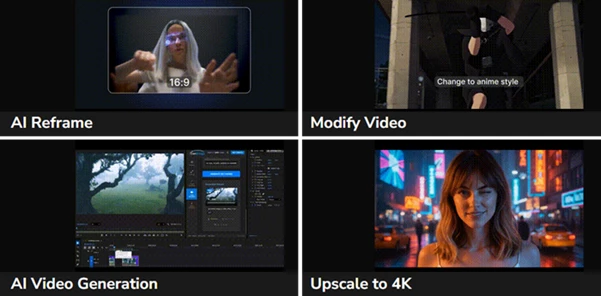
AI Reframe
Convert videos into multiple aspect ratios, including 1:1, 4:5, 16:9, 9:16, 21:9, and 9:21, without simply cropping the image. GenBridge intelligently generates missing content, preserving the original composition and creating natural-looking results for every platform.
Why it matters
Instead of losing important visual elements, your videos remain visually balanced whether you’re publishing to YouTube, Instagram Reels, TikTok, or other social platforms.
AI Video Modification
Use simple text prompts to transform the appearance of existing footage. You can adjust lighting, mood, atmosphere, and overall visual style while keeping the original shot intact.
Real-world examples
- Create a cinematic look.
- Change daytime scenes into sunset lighting.
- Apply artistic visual styles.
- Refresh older footage with a modern appearance.
These AI adjustments allow creators to experiment with multiple creative directions in just a few clicks.
Image to Video Generation
Select any frame from your edit and use AI to generate realistic motion, transitions, or entirely new shots.
Instead of searching for stock footage or creating complex animations manually, GenBridge generates new content that fits naturally into your existing sequence.
This feature is particularly useful for:
- Creating cinematic transitions
- Expanding scenes
- Producing AI B-roll
- Visualizing creative concepts
- Filling missing footage
AI 4K Upscaling
Enhance lower-resolution videos with AI-powered upscaling. GenBridge improves:
- Image sharpness
- Fine detail
- Overall clarity
- Resolution up to 4K
Older footage becomes much more suitable for today’s high-resolution production standards.
Multiple AI Engines
GenBridge integrates several leading AI technologies into one unified workflow. Supported AI providers include:
- Luma Labs
- Veo
- Kling
- Topaz Labs
- Suno
- Sora 2
- ByteDance
- Runway
Having multiple AI engines available gives creators greater flexibility for different production styles and creative requirements.
Native Adobe Workflow
One of GenBridge’s biggest advantages is that everything happens directly inside Premiere Pro and After Effects. There is:
- No exporting
- No browser switching
- No manual importing
- No broken workflow
Generated content appears directly inside your timeline, allowing you to continue editing immediately. This native integration dramatically reduces production time while making AI generation feel like a natural part of the editing process.
Professional Tips
To achieve the best results with GenBridge, consider these practical recommendations:
- Write detailed prompts instead of short, generic descriptions.
- Test multiple AI variations before selecting the final version.
- Start with the highest-quality source footage available.
- Use AI Reframe instead of cropping when creating vertical content.
- Apply AI Upscaling after your main edit is complete for optimal quality.
- Combine AI-generated footage with professional color grading to create a polished final look.
These simple techniques help produce more natural and professional-looking videos.
Final Thoughts
GenBridge introduces a more efficient way to use AI inside professional editing software. By eliminating exports, external applications, and unnecessary file transfers, it allows editors to stay focused on creativity from start to finish.
Whether you’re reframing videos for social media, transforming footage with AI, generating entirely new clips, or enhancing video quality to 4K, GenBridge provides a streamlined workflow that fits naturally into Premiere Pro and After Effects.
For content creators, filmmakers, editors, and motion designers, GenBridge offers a faster, more flexible, and significantly more enjoyable AI-powered editing experience.

Files Password : gfxplugin.com OR 123456