Downloadable Files
You can download the ClipFerry product for free from the end of this page.
Stop Leaving Premiere for AI Video Enhancement
If you already use Topaz Video AI, you know how effective it is at improving footage. The frustrating part is not the enhancement itself—it’s the repetitive workflow. Export clips, open another application, import media, render, re-import the results into Premiere Pro, and manually reconnect everything. Those extra steps can quickly become the slowest part of your editing process.
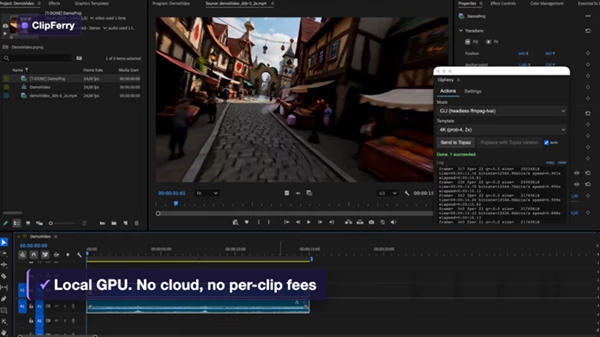
ClipFerry removes that unnecessary round trip by connecting Adobe Premiere Pro directly with your locally installed Topaz Video AI. Instead of constantly switching between applications, you can send selected timeline clips for enhancement, let the rendering happen automatically, and continue editing while the process runs in the background.
Why This Workflow Matters
Professional editors often work with footage that needs more than simple color correction. Old archive videos, compressed recordings, low-resolution clips, or legacy camera footage frequently require AI-powered enhancement before they can be used in modern productions.
Without automation, every clip requires several manual steps.
With ClipFerry, the workflow becomes much simpler:
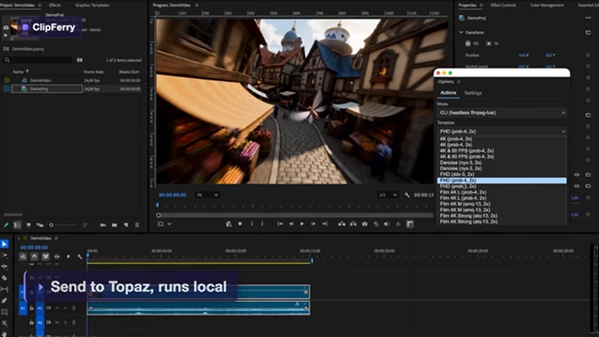
- Select clips directly from the Premiere timeline.
- Choose your preferred Topaz Video AI preset.
- Send everything with one click.
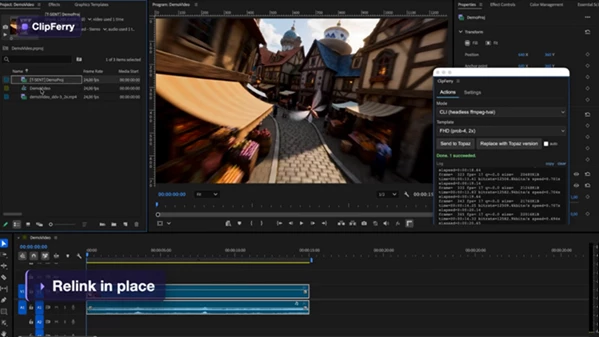
- Let ClipFerry render each clip automatically.
- The enhanced media is relinked without rebuilding your edit.
Because only the source media changes, your cuts, effects, transitions, timing, and overall edit remain exactly as you created them.
Meet ClipFerry
ClipFerry is a workflow automation extension for Adobe Premiere Pro that works alongside your own licensed installation of Topaz Video AI.
Instead of replacing Topaz, ClipFerry controls it automatically, handling the repetitive tasks that normally interrupt your editing session. It launches renders, processes selected clips one after another, and reconnects the finished files inside Premiere without manual intervention.
This makes AI enhancement feel like a native part of your editing workflow rather than a completely separate production stage.
Features
Direct Premiere Pro Integration
Everything begins inside your Premiere timeline.
Simply select one or multiple clips, choose a Topaz preset, and send them for processing without exporting projects or manually organizing files.
Automatic Batch Processing
Instead of enhancing clips individually, ClipFerry creates a processing queue.
This is especially useful for interviews, documentaries, event coverage, or projects containing dozens of clips that need identical AI enhancement.
Use Your Existing Topaz Presets
One of the strongest advantages is that ClipFerry works with your own Topaz Video AI presets.
If you’ve already created custom enhancement settings for upscale, restoration, denoising, or sharpening, those presets can be used directly without rebuilding them every time.
This helps maintain visual consistency across an entire project.
Local GPU Rendering
This project performs rendering through your own licensed Topaz Video AI installation. That means:
- No additional rendering fees
- No upload waiting time
- No downloading of processed footage
- Full use of your local GPU performance
Editors who process large amounts of footage can enhance unlimited clips using their existing Topaz license.
Automatic Media Relinking
Perhaps the biggest time saver is automatic relinking.
Enhanced files are stored inside a dedicated topaz folder beside the original media, keeping source footage untouched.
Once rendering finishes, ClipFerry replaces the timeline media with the enhanced version while preserving:
- Timeline position
- Clip timing
- Effects
- Cuts
- Sequence structure
If the enhanced clip has a higher resolution, ClipFerry automatically adjusts the clip scale so it fits correctly inside the sequence.
Two Flexible Rendering Modes
Different projects require different workflows. ClipFerry provides two rendering options:
- Headless Render for fully automated background batch processing.
- Open in Topaz when you want to review or adjust settings manually before rendering.
This flexibility works equally well for quick production jobs and more detailed finishing work.
Ideal for Real Editing Projects
this tool is especially valuable for editors working on:
- SD or HD footage that needs 4K upscaling
- Old archive restoration
- Noisy camera recordings
- Compressed social media videos
- Documentary interviews
- B-roll enhancement
- Legacy production footage
Instead of interrupting your edit dozens of times, the entire enhancement process becomes part of the normal Premiere workflow.
Tips for Better Results
Although ClipFerry automates the workflow, a few simple habits can help produce even better results.
Choose the appropriate Topaz preset for each type of footage rather than using one preset for every clip. Archive footage, compressed recordings, and modern digital cameras often benefit from different enhancement settings.
When processing many clips, Headless Render is usually the fastest option because rendering continues in the background while you keep editing.
Keep your original media organized. Since ClipFerry stores enhanced files in a separate topaz folder, maintaining a clean project structure makes future revisions much easier.
Finally, test your preferred Topaz presets on several representative clips before processing an entire project. A small amount of testing can save considerable rendering time later.
Final Thoughts
For anyone who already utilizes Topaz Video AI for enhancing their video projects, ClipFerry removes the most frustrating step of the editing process: having to leave Premiere Pro to enhance their video clips.
Instead, editors can remain within their editing software while ClipFerry enhances their video automatically in the background.
Whether restoring old footage or enhancing videos to 4K resolution, this tool helps editors to integrate Topaz Video AI into their editing software in ways that are fast, smooth, and integrated into their editing projects.

Files Password : gfxplugin.com OR 123456