Downloadable Files
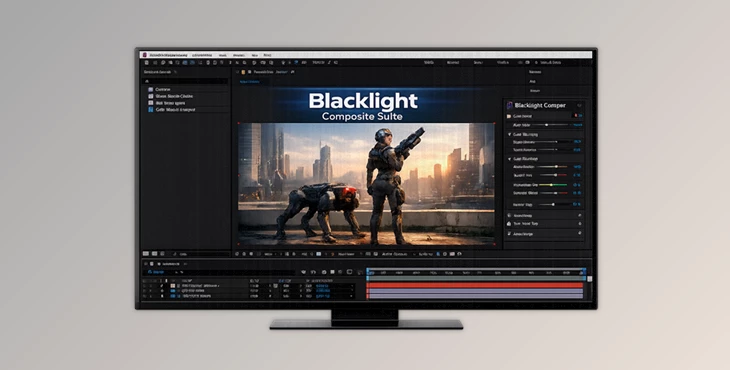
You can download the Blacklight Composite Suite for free at the end of this page.
Make Every Composite Feel Like It Belongs
The right compositing tools and techniques can make a massive difference in your VFX or green screen shots.
Simply placing one image on top of another might be enough to create the illusion you’re looking for.
However, getting the lighting, color, edge detail, and shadows to match perfectly is usually what separates a professional composite from an amateur creation.
Blacklight Composite Suite has been designed to help users overcome these problems with a collection of specialized compositing tools that blend foreground elements naturally into a scene.
Whether adding VFX or green screen shots, these tools make the process more straightforward and ensure that you create more realistic composites.
Understanding Professional Compositing
Professional compositing is the process of combining multiple visual elements into a single image while making everything appear as though it was captured together.
Imagine adding a person filmed on a green screen to a city street. Simply removing the green background isn’t enough. The lighting should match the environment, the colors need to feel consistent, and the edges must remain clean without looking too sharp or overly blurred.
Without proper compositing tools, artists often spend hours adjusting masks, correcting colors, fixing matte imperfections, and manually balancing lighting. Even then, subtle issues can remain visible.
This is where Blacklight Composite Suite dramatically improves the workflow by automating many of the most difficult and time-consuming compositing tasks.
Blacklight Composite Suite Makes Compositing Easier
Instead of focusing on just one effect, Blacklight Composite Suite brings together several professional compositing utilities into one package. Each tool targets a different stage of the compositing process, allowing artists to work faster while maintaining high-quality results.
Features
Comper
Comper is the centerpiece of the suite.
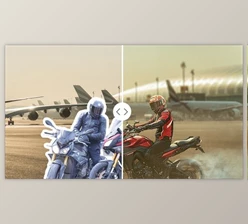
It intelligently embeds foreground elements into a background by matching lighting, color characteristics, and various optical properties. Rather than requiring complicated pre-compositions with perfectly aligned transformations, it automatically handles the overlap between layers.
For example, if you’re inserting a CG object into live-action footage, Comper helps the object inherit the overall visual characteristics of the scene, making the integration feel much more natural.
Smart Matte Choker
Traditional matte choking often removes important edge detail such as hair, fur, smoke, or semi-transparent objects.
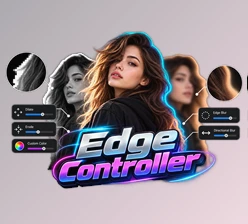
Smart Matte Choker allows you to tighten matte edges while preserving those fine details. It also lets you choke specific areas selectively, making it possible to fix problematic edges without affecting the entire matte.
Different edge processing modes also give artists creative control over the final appearance of the composite.
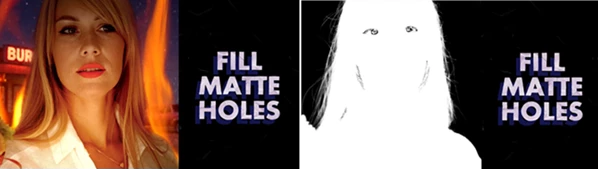
Fill Matte Holes
After keying footage, tiny holes frequently appear inside objects because of imperfect chroma key results.
Fill Matte Holes automatically repairs these unwanted gaps without requiring manual roto work or additional masking. Adjustable size thresholds and fade ranges help prevent flickering while maintaining smooth animation.
This can save significant cleanup time on complex green screen shots.
Color Match Analyzer
Included as a free plugin, Color Match Analyzer simplifies one of the most common compositing challenges: matching colors between two different shots.
With a single click, it analyzes both layers and adjusts color differences automatically. Artists can compare entire frames or focus on selected regions for localized matching, making it useful for matching actors, backgrounds, or multiple camera angles in the same sequence.
Small Techniques That Make Composites Look Real
Although the suite automates much of the technical work, following a few good practices will produce even better results.
- Perform color matching after completing your primary key for more accurate analysis.
- Use Smart Matte Choker only where edge problems exist instead of applying heavy choking everywhere.
- Repair matte holes before adding color correction or lighting adjustments.
- Compare the composite at both full resolution and zoomed-in views to catch subtle edge issues.
- Keep foreground and background exposure reasonably close before relying on automatic matching for the cleanest results.
- Take advantage of Comper’s automatic overlap handling instead of creating unnecessary pre-compositions, helping keep projects simpler and easier to edit.
Final Thoughts
Professional compositing projects often involve dozens of micro-corrections that make or break a shot.
Blacklight Composite Suite makes many of these corrections simple with tools for intelligent compositing, creating mattes, fixing matte issues, color matching, and much more.
Whether combining green screen footage, integrating CG with live-action shots, or creating beautiful VFX shots, this suite helps you create cleaner composites with less manual work.
By automating a lot of the cleanup work required for high-quality composites, you can spend more time focusing on the creative side of your VFX projects.

Files Password : gfxplugin.com OR 123456


![Download Realistic Live-Action VFX Compositing Using Blender by Wakui Rey [ ENGLISH SUB ]](https://dls4.gfxplugin.ir/Download_Files/24773/SearchSmall/banner.png)