Downloadable Files
You can download Faux Lock for free at the end of this page.
Stop Fighting Layers That Block Every Click
If you’ve ever worked on a complex After Effects composition, you’ve probably experienced the frustration of clicking on an adjustment layer, matte, or guide when you were actually trying to select the layer underneath. These invisible workflow interruptions can quickly slow down animation, compositing, and motion graphics projects.
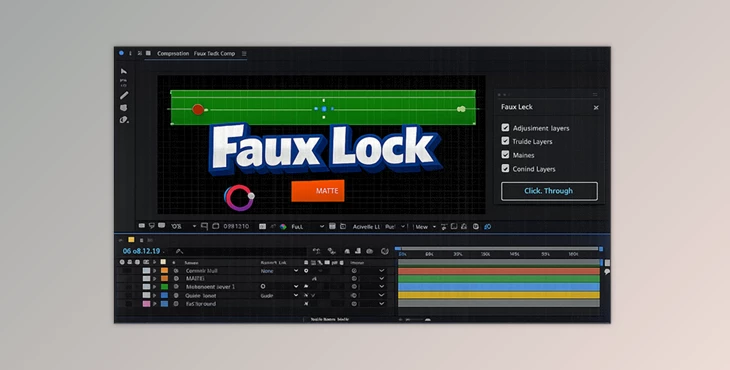
Faux Lock solves this problem with a clever approach. Instead of locking a layer completely, it makes selected layers click-through inside the Composition Viewer while keeping them fully editable and selectable in the Timeline. The result is a smoother editing experience that lets you stay focused on creativity instead of constantly fighting your layer stack.
What Is Faux Lock?
Faux Lock is a workflow enhancement plugin for Adobe After Effects that separates how layers behave in different parts of the interface.
Normally, using After Effects’ built-in layer lock (Cmd/Ctrl + L) prevents editing everywhere. Faux Lock changes this behavior by allowing layers to ignore mouse clicks inside the Composition Viewer while remaining accessible inside the Timeline.
Think of it like creating a transparent shield over specific layers. They stay visible and functional, but they no longer steal your mouse clicks while you’re selecting other elements.
This becomes incredibly useful when working with:
- Full-screen adjustment layers
- Track mattes
- Guides and overlays
- Null controls
- Camera helpers
- Large UI reference layers
- Motion graphics templates with dozens of stacked layers
Instead of constantly hiding or locking layers manually, you simply continue working naturally while Faux Lock manages the interaction automatically.
Work Faster with Faux Lock
Professional After Effects projects often contain many utility layers that should stay visible but shouldn’t interfere with editing.
Rather than interrupting your workflow every few seconds, Faux Lock intelligently changes a layer’s lock state depending on where you’re working. When you select a target in the Timeline, the layer becomes editable again. When you return to the Composition Viewer, click-through behavior is restored automatically.
This creates a much cleaner editing experience, especially during long animation sessions.
Whether you’re creating YouTube intros, commercial animations, VFX composites, UI motion graphics, or explainer videos, this small improvement can remove hundreds of unnecessary clicks every day.
Features
Viewport Click-Through Selection
The primary feature allows selected layers to ignore mouse clicks inside the Composition Viewer. Adjustment layers, guides, mattes, and helper objects stay visible without preventing you from selecting the artwork underneath.
Timeline Editing Remains Fully Available
Unlike After Effects’ native lock feature, Faux Lock does not permanently disable editing.
Whenever you work in the Timeline, the plugin temporarily releases the layer so you can:
- Move it
- Animate it
- Adjust effects
- Rename it
- Change settings
Then it automatically restores click-through mode when appropriate.
Native Real-Time Performance
Faux Lock runs using a native plugin engine instead of an ExtendScript workaround. That means:
- Faster response
- Real-time behavior
- Better reliability
- Smooth interaction even in large projects
This native implementation feels like a built-in After Effects feature rather than an external script.
Smart Target Tracking
As compositions evolve, layers are constantly being duplicated, renamed, or reorganized.
Faux Lock keeps track of target layers as compositions change, helping maintain your workflow without requiring constant setup.
This is particularly useful on large productions with many precompositions.
Clear Visual Status Indicators
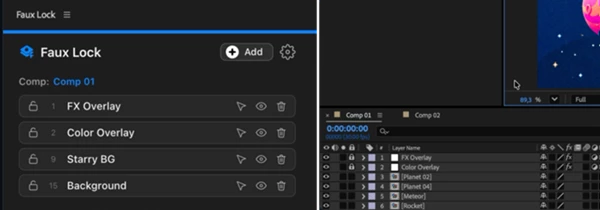
The interface uses simple color-coded states that let you immediately recognize whether a layer is:
- Locked for click-through
- Temporarily released
- Currently active
This makes managing many protected layers quick and intuitive.
Lightweight Undo History
Because Faux Lock temporarily changes After Effects’ built-in lock state, you’ll occasionally see small “Faux Lock” entries inside the Undo History.
The plugin intelligently groups these operations into minimal undo steps, keeping your history clean while preserving normal After Effects behavior.
Professional Tips
Although Faux Lock is extremely simple to use, a few habits can make it even more effective.
Keep all utility layers—such as adjustment layers, guides, controller nulls, and mattes—inside your Faux Lock target list. This keeps your Composition Viewer clean while preserving quick Timeline access.
For template projects, organize helper layers at the top of the Timeline before enabling Faux Lock. This creates a predictable workflow that remains easy to manage even after dozens of revisions.
When working with large motion graphics projects, combine Faux Lock with layer labels and shy layers. Together, these features create a much more organized workspace without hiding important controls.
If you’re collaborating with other artists, remember that Faux Lock improves interaction without changing the visual output of your composition, making it a safe addition to shared workflows.
Final Thoughts
Small workflow improvements often have the biggest impact over time, and Faux Lock is a perfect example. Instead of changing how After Effects works, it removes one of the most common daily frustrations by allowing utility layers to stay visible without constantly getting in your way.
Whether you’re building motion graphics, compositing visual effects, editing templates, or creating complex animations, Faux Lock helps keep your attention on the creative process instead of repetitive layer management.
Once you experience click-through adjustment layers while still editing them freely in the Timeline, it’s surprisingly difficult to go back to the traditional workflow.