Downloadable Files
You can download High Pass for AE for free at the end of this page.
Sharpen Your Motion Graphics with Ease
Sometimes a composition looks technically correct, but it still feels a little soft or lacks texture. Whether you’re enhancing footage, creating detailed masks, or refining skin textures, a High Pass filter can make a noticeable difference.
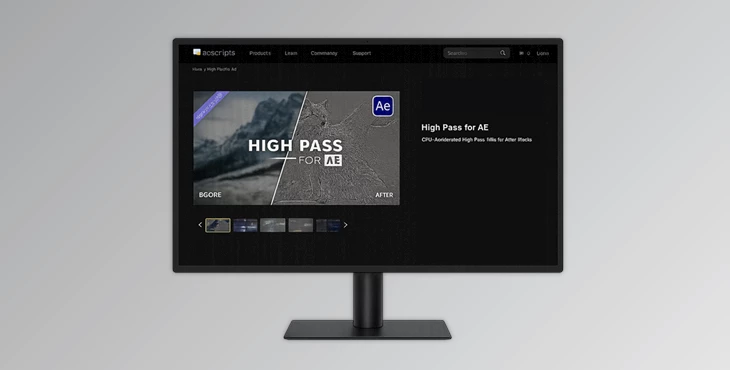
High Pass for AE brings the well-known High Pass workflow from Adobe Photoshop directly into Adobe After Effects. Thanks to GPU acceleration, the plugin delivers fast performance, allowing you to improve image clarity and create advanced visual effects without slowing down your workflow.
What Is a High Pass Filter?
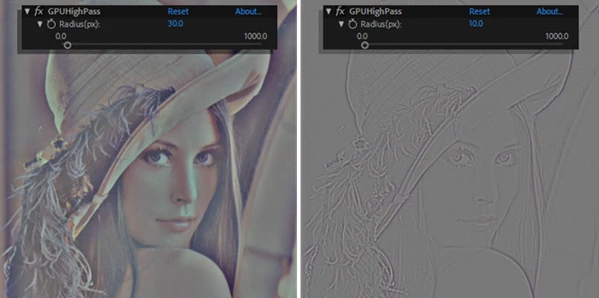
The High Pass filter will allow you to isolate the important details of your project while removing the elements that may distract from the main subject. This is often used to enhance the sharpness of your footage, improve your texture, and even create masks for special effects.
High Pass for AE is helpful for enhancing your video clips, working on skin textures, creating seamless textures for game assets, and much more.
Meet High Pass for AE
If you frequently work inside Adobe After Effects, High Pass for AE eliminates the need to switch between multiple applications just to apply a High Pass filter. The plugin integrates directly into your editing workflow while taking advantage of GPU acceleration for responsive performance.
Whether you’re producing motion graphics, visual effects, commercial videos, or social media content, this lightweight plugin gives you quick access to one of Photoshop’s most valuable image-processing techniques.
Features
GPU Accelerated Performance
The plugin uses GPU acceleration to process High Pass effects efficiently, making it suitable even for high-resolution compositions.
Photoshop-Style High Pass Filter
Bring the familiar High Pass workflow from Photoshop into After Effects without exporting frames or switching software.
Image Sharpening
Improve edge definition and enhance overall image clarity while maintaining natural-looking results.
Mask Creation
Generate detailed masks that help isolate textures, edges, and fine image elements for advanced compositing tasks.
Skin Detail Enhancement
Adjust facial details with greater control, allowing you to refine skin textures without heavily affecting surrounding tones.
Texture Tiling
Prepare textures for seamless tiling and improve the quality of texture-based graphics used in design, animation, and 3D workflows.
Flexible Creative Workflow
Because the filter focuses on high-frequency information, it can be combined with blending modes and additional effects to create many advanced visual treatments inside After Effects.
Professional Tips for Better Results
Apply the filter conservatively when sharpening footage. Small adjustments usually produce cleaner and more natural-looking images than aggressive settings.
Combine High Pass with blend modes such as Overlay or Soft Light to achieve subtle sharpening effects while preserving color balance.
When enhancing portraits, focus only on important facial details instead of increasing sharpness across the entire frame. This helps maintain a realistic appearance.
For texture creation, experiment with different High Pass settings before exporting your assets. Slight adjustments can significantly improve seamless tiling quality.
Since the plugin is GPU-accelerated, preview your changes in real time whenever possible to fine-tune the effect before rendering.
Final Thoughts
High Pass for AE brings the Photoshop High Pass filter to the world of After Effects with GPU-accelerated performance. From enhancing your video footage to improving textures for your projects, High Pass for AE will help you with a variety of tasks.
Whether you are new to After Effects or have been working in the program for years, High Pass for AE will allow your projects to turn in cleaner, sharper productions with minimal effort.

Files Password : gfxplugin.com OR 123456