Downloadable Files
You can download Type ReAlign for free from the end of this page.
Type ReAlign – Keep Your Text Perfectly Aligned Without Moving It
Changing the alignment of text in After Effects is something that many users perform at least once during their project. Yet, each time you change the alignment, the text seemingly moves on the screen in a way that can be frustrating to overcome.
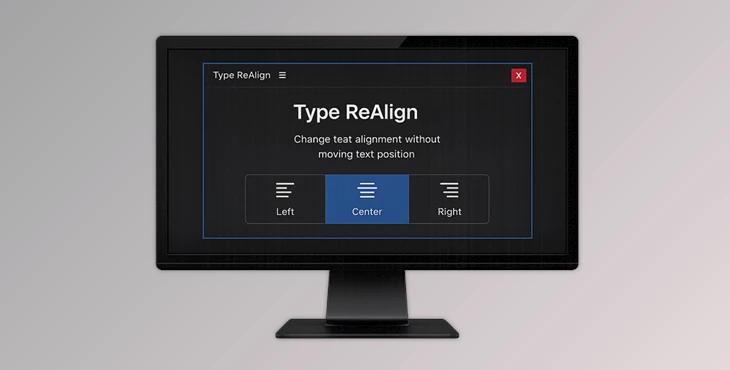
Type ReAlign was made to eliminate the need to move your text every time you change alignment settings. Simply click the buttons to change alignment, and your text will remain where it is.
What Is Type ReAlign?
Type ReAlign is an After Effects extension designed to change text alignment without changing the visual position of your text layer.
Normally, After Effects moves the entire text layer whenever you change paragraph alignment. Type ReAlign automatically compensates for that movement, so your text stays perfectly in place.
This becomes especially valuable when working with animated titles, lower thirds, UI elements, or motion graphics where every pixel matters.
For example:
- Update a title from left-aligned to center-aligned without repositioning it.
- Modify client text revisions without breaking existing animations.
- Keep interface labels perfectly aligned during design iterations.
- Switch typography styles without rebuilding compositions.
By removing unnecessary adjustments, Type ReAlign helps editors and motion designers work faster while maintaining consistent layouts.
Features
Keep Text Position While Changing Alignment
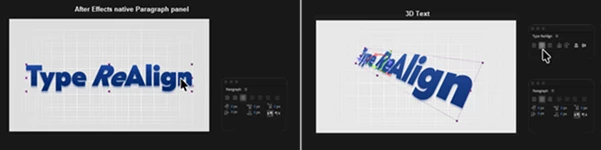
Switch instantly between left, center, and right alignment without moving the text layer inside your composition.
Supports 2D and 3D Text Layers
The extension works with both regular 2D text and fully editable 3D point text layers, making it useful for a wide range of After Effects projects.
Anchor Point Lock
Maintain animation consistency by preserving anchor point behavior when changing alignment. Existing keyframes continue working as expected without unwanted shifts.
Center Layers to Composition
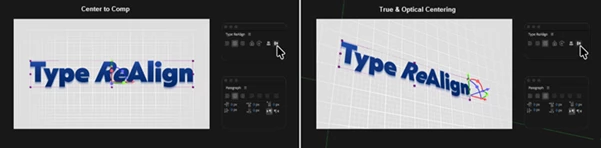
Quickly center layers inside your composition, including 3D layers—not just text—saving valuable setup time.
True and Optical Centering
Choose between mathematically accurate centering or optical centering for more visually balanced typography and graphic elements.
Native After Effects Interface
Type ReAlign blends naturally into the After Effects workspace with a clean panel that feels like a built-in tool instead of a third-party extension.
Ideal for Professional Motion Graphics
Whether you’re creating YouTube intros, broadcast graphics, corporate presentations, explainer videos, or UI animations, Type ReAlign streamlines typography adjustments throughout production.
Pro Tips
When creating reusable templates, always finalize alignment using Type ReAlign before duplicating compositions. This helps keep every version consistent.
If you’re animating text position or scale, use Anchor Point Lock before changing alignment to avoid unexpected animation offsets.
For titles that need perfect visual balance, compare True Center and Optical Center modes. Optical centering often creates a more natural appearance, especially for logos and short headlines.
When working with multiple language versions of the same project, Type ReAlign makes it much easier to adjust paragraph alignment without rebuilding layouts from scratch.
Final Thoughts
As small as the typographical details of any project may seem, they can have a significant impact on viewers of your After Effects project.
Type ReAlign was made to eliminate one of the most frustrating aspects of text alignment in After Effects: having to move your text every time you change alignment settings.
Whether you are creating professional motion graphics for titles, text revisions, graphics, and templates, Type ReAlign will help you work faster and create more professional compositions and projects.
 Type ReAlign - Ae Plugin by Aescripts (v1.1.1 for Win, Mac).rar (Size: 1.2 MB - Date: 7/22/2026 10:35:52 AM)
- Type ReAlign - Ae Plugin by Aescripts (v1.1.0 for Win, Mac).rar (Size: 1.2 MB - Date: 7/15/2026 2:43:09 PM)
- Type ReAlign - Ae Plugin by Aescripts (v1.0.2 for Win, Mac).rar (Size: 1.2 MB - Date: 6/30/2026 10:59:01 AM)
- Aescripts - Type ReAlign v1.0.1 (Win, Mac).rar (Size: 1.2 MB - Date: 6/27/2026 1:47:20 PM)
Files Password : gfxplugin.com OR 123456