Downloadable Files
You can download Surface Blend for free from the end of this page.
Create Natural Material Transitions in Seconds
Have you ever placed a rock, path, prop, or any type of environmental asset into Blender? One of the most common challenges with creating environments in Blender is making sure that the assets appear to naturally belong within the scene. This is where Surface Blend can be of the greatest help to Blender artists and environment designers.
Instead of having to manually create material masks or shaders for your environmental assets, Surface Blend automatically blends the materials between your asset and the environment in real time. This saves artists time and effort while also resulting in a more believable and natural-looking environment.
Whether you are creating landscapes, game environments, architecture visualizations, or even cinematic scenes, Surface Blend can be used to create smooth material transitions between your assets and the surrounding environment in your scene.
What Is Surface Blending and Why Is It Important?
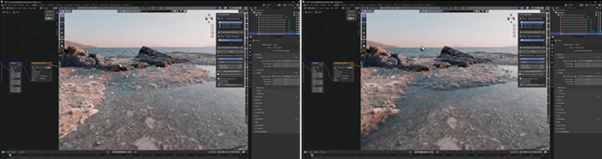
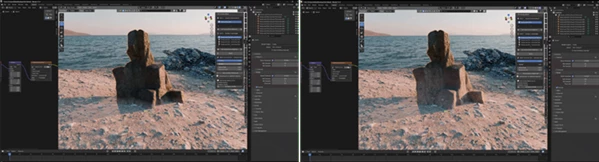
Surface blending is the process of gradually merging one material into another instead of having a sharp visual separation between them. In nature, surfaces rarely end abruptly. Grass slowly fades into dirt, dirt transitions into stone, and objects naturally affect the ground around them.
Without proper blending, assets often appear artificially placed on top of a surface. This can break immersion and reduce realism.
By using proximity-based material blending, artists can create scenes where:
- Rocks naturally merge with the surrounding soil.
- Paths gradually fade into the grass.
- Debris interacts realistically with terrain.
- Environmental assets feel connected to the landscape.
- Large outdoor scenes become more believable.
These subtle details can dramatically improve the final appearance of a project and make environments look professionally crafted.
Surface Blend: Real-Time Material Integration for Blender
Surface Blend is a Blender tool designed to automatically blend the materials of any asset into a target surface using Geometry Nodes and intelligent shader mixing.
The workflow is intentionally simple:
- Select the surface.
- Select the asset.
- Click Blend.
The tool instantly creates a smooth transition between the asset and the surrounding terrain while remaining completely non-destructive. As assets move or rotate, the blend updates automatically in real-time.
This allows artists to focus on creativity rather than technical setup.
Features
Proximity-Based Material Blending
Surface Blend uses distance calculations to determine where and how materials should merge.
As an object approaches the surface, the material transition automatically appears and adapts to its position. The blend remains smooth and visually natural without requiring manual masks or texture painting.
This makes it ideal for rocks, vegetation, debris, roads, pathways, and environmental props.
Real-Time Follow System
One of the most powerful features is the live follow system.
When you move, rotate, or reposition an object, the material blend updates instantly. There is no need for rebaking, rebuilding, or manually refreshing effects.
This real-time feedback significantly speeds up environment design and scene iteration.
Ordered Layered Blending
Complex environments often require more than two materials.
Surface Blend supports layered blending, allowing multiple materials to transition in a controlled order, such as:
Grass → Dirt → Stone
Because the blending follows a predictable one-directional workflow, artists can create sophisticated surface interactions while maintaining full control over the final result.
Procedural Noise Integration
Perfectly clean blend edges rarely exist in nature.
Surface Blend introduces procedural noise that breaks up transitions and creates more organic borders. Users can control both the scale and intensity of the noise to achieve subtle weathering effects or highly irregular natural patterns.
This helps environments appear more realistic and less computer-generated.
Live Control Parameters
Every major setting can be adjusted while viewing the scene in real-time:
- Spread
- Strength
- Noise Scale
- Noise Amount
Instant visual feedback allows artists to fine-tune transitions without interrupting their workflow.
Non-Destructive Workflow
Because the system is built with Geometry Nodes and shader mixing, artists can freely experiment without permanently modifying materials or geometry. This flexibility makes Surface Blend suitable for both rapid prototyping and final production work.
Clean and User-Friendly Interface
All controls are organized inside a dedicated Blender N-Panel. The streamlined interface allows users to assign surfaces and assets quickly, reducing setup complexity and making the tool accessible even for artists who are new to procedural workflows.
Professional Tips for Better Results
Use Subtle Noise First
When adding procedural noise, start with low values and gradually increase intensity. Small variations often create the most believable transitions.
Combine Multiple Material Layers
Take advantage of the layered blending system to build realistic environmental storytelling. For example, create pathways that gradually transform into dirt and then blend into surrounding vegetation.
Test Different Spread Values
The spread setting has a major impact on realism. Wider blends often work better for large environmental assets, while tighter blends are ideal for smaller props and rocks.
Move Assets During Setup
Since Surface Blend updates in real-time, experiment with asset placement while adjusting parameters. This helps you quickly discover the most natural-looking blend configuration.
Maintain Material Consistency
Using materials with complementary colors and textures will create smoother transitions and improve the visual cohesion of the entire scene.
Final Thoughts
Many of the most believable environments created in Blender include some form of blending between the materials of any placed environmental asset and the environment itself. By automatically creating these blends with the Surface Blend tool for Blender, artists can save time and effort while also automatically creating realistic material blends between their assets and surroundings in their scenes.
The inclusion of features like proximity-based blending, real-time follow systems, layered material blending, procedural noise, and a non-destructive workflow ensures that artists can create any type of realistic scene while also saving time in the creation of those scenes.
Whether you are an architect, game developer, visualization designer, or even an individual creating visual art projects for personal satisfaction, the Surface Blend tool can help you create believable, natural-looking environments in Blender.

Files Password : gfxplugin.com OR 123456