Downloadable Files
You can download Qol Tools for free at the end of this page.
Make Blender Feel Faster Every Day
Have you ever found yourself completing the same tasks in Blender over and over again? Whether you’re working in modeling, animation, or other art departments within Blender, there are countless tasks that can add to your workload. This is where Qol Tools comes into play.
As a collection of lightweight Blender add-ons, this tool was created to enhance your Blender workflow without adding significant visual noise to your interface. Rather than installing an add-on with hundreds of features that you will likely never use, Qol Tools offers you several add-ons with a specific function that works exceptionally well for that particular purpose.
The result is that you can work in Blender with a clean interface and increase the number of projects you can complete each day.
What Is Qol Tools?
Qol Tools is a bundle of Blender add-ons that will significantly enhance the experience of modeling, animating, lighting, and managing scenes in Blender.
The idea of QOL Tools is to add features and functionality to Blender that will increase the quality of your life while working with the software. The tools within the collection are focused on having minimal features and a small learning curve to get up and running with the software as soon as possible.
By reducing the amount of time you spend on repetitive tasks, you can focus more on creating your art.
Meet the Collection
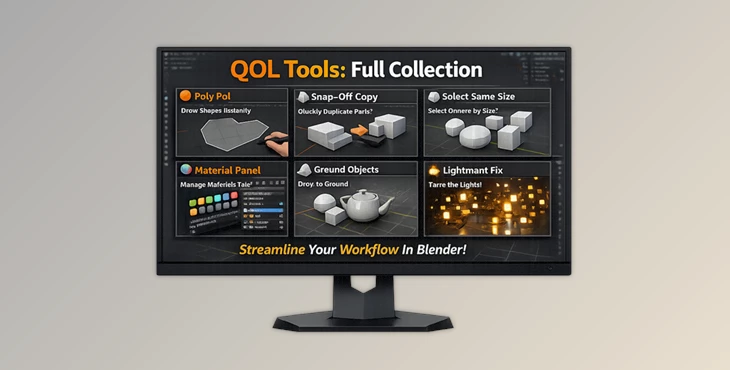
Unlike traditional all-in-one Blender toolkits, Qol Tools: Full Collection prioritizes simplicity and flexibility.
Artists can choose from a growing library of focused utilities that integrate naturally into Blender’s workflow. Each tool is designed to solve a practical production challenge while keeping Blender responsive and uncluttered.
Whether you’re creating game assets, architectural visualizations, product renders, motion graphics, or animated films, the collection provides workflow enhancements that save valuable production time.
Features
Selection and Organization Tools
- QOL Selection Bookmarks for saving and recalling object selections instantly.
- QOL Camera Bookmarks for fast camera position management.
- QOL Outliner Extras for auto-reveal, auto-collapse, and improved scene organization.
- QOL Link Widget for monitoring and managing instances without interrupting workflow.
Modeling and Geometry Enhancements
- QOL Polypal for drawing polygon shapes directly without traditional setup steps.
- QOL Bridge Object for creating bridge geometry between separate objects.
- QOL GridCut for generating evenly divided geometry for modifier workflows.
- QOL QuickBool for rapid Boolean operations directly from Blender’s context menu.
- QOL Snap Off Copy for separating mesh selections into new objects instantly.
Selection Utilities
- QOL Select Same Size for selecting objects based on dimensional similarity.
- QOL Select Same Vertex Count for finding matching mesh structures.
- QOL Select Contiguous Edges for smoother loop and edge selection workflows.
Animation Workflow Tools
- QOL Ripple Shift for adjusting animation timing across entire scenes.
- QOL FrameFlipper for instantly switching between custom keyframes.
- Enhanced control over animation pacing and scene flow.
Lighting and Rendering Assistance
- QOL Spec Lighting Ops for advanced Cycles specular light placement.
- QOL Lightmare Fix for reducing lighting clutter in complex scenes.
Visual Feedback and Measurement
- QOL HUD Distances for displaying live measurements between selected objects.
- QOL HUD Dimensions for monitoring object sizes through customizable overlays.
Utility and Productivity Add-ons
- QOL Place On Ground for quickly positioning assets on surfaces or world origin.
- QOL Bonus Tools collection featuring additional workflow improvements.
- QOL Materials Panel 3 for faster material assignment and management.
Real-World Production Examples
By using these tools, you can significantly enhance your Blender experience. For example, if you have dozens of cameras in your project, you can quickly jump between camera angles using the camera bookmarks. Alternatively, if you are working on a product visualization project, the Spec Lighting Ops tool will allow you to create the perfect specular lights to showcase your product features.
Another example is that if you work on architectural visualization projects, the Polypal and GridCut tools will significantly accelerate the modeling of your projects. Additionally, if you work in the animation department, the Ripple Shift and FrameFlipper tools will save you time when creating and editing your animation projects.


Pro Tips for Better Results
Build a Personal Workflow for Your Projects
Only install the features that suit your projects to keep Blender light and easy to use while enhancing your efficiency.
Combine Some of the Modeling Tools
QOL Polypal can work best with the GridCut and QuickBool tools to model your projects more quickly.
Use the Selection and Organization Tools
Use the selection and organization tools to save your projects the next time you work on them to save time.
Enhance Your Animation Projects
Use the Ripple Shift tool to shift all your animation frames to accommodate your clients’ requests for changes.
Use the Visual Feedback Tools
Use the visual measurement tools to maintain the proportions of your projects, especially if you work in the architectural or product visualization industry.
Final Thoughts
Rather than adding hundreds of features to Blender that you will not use, these tools enhance the experience of working in the program by focusing on daily interactions that have the greatest impact on your productivity.
With the growing number of tools in the collection, this add-on will help you to create and model faster, animate your projects more efficiently, and maintain your momentum throughout your projects in Blender.
For anyone looking to enhance their Blender experience with fewer features that do not clutter the interface, the Qol Tools will significantly improve every area of your projects.

Files Password : gfxplugin.com OR 123456