Downloadable Files
You can download ShotNotes For Premiere Pro for free at the end of this page.
Stop Losing Track of Feedback
As every editor knows, there are numerous ways to lose track of the feedback you receive during the editing process. Many editors use Word to note feedback, notebooks, sticky notes, emails, and more. However, as projects grow larger and more complex, it can quickly become a chore to find the comments that matter to the editing process.
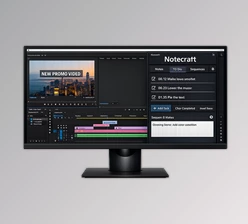
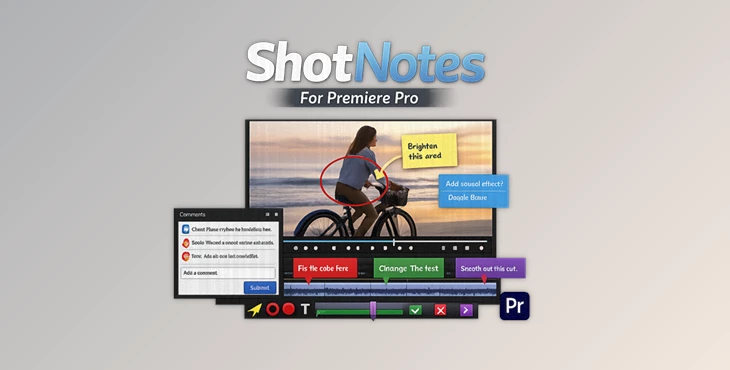
ShotNotes for Premiere Pro was created to help editors track feedback and editing tasks within the editing software that they use daily. This editing task and feedback management software allows editors to manage every aspect of their editing within Premiere Pro.
Whether editors work on YouTube videos, documentaries, and more, ShotNotes will allow editors to track all editing tasks and feedback to the project that they are editing.
What Is ShotNotes and Why Is It Useful?
ShotNotes is a powerful editing productivity tool made for Adobe Premiere Pro editors. With ShotNotes, editors can keep track of editing tasks, time spent editing, and generate reports to illustrate editing activities.
For example, if editors receive feedback that a particular transition at a specific timecode should be edited, they can click on that timecode in Premiere Pro to jump to that portion of their editing project.
The benefits of ShotNotes include:
- Faster access to editing feedback.
- Easier finding of editing tasks.
- Faster editing project completion.
- Clearer communication between editing team members.
- Less editing project searching time.
All of these benefits will make the editing process smoother and reduce the likelihood of editing mistakes.
Meet ShotNotes For Premiere Pro
ShotNotes for Premiere Pro transforms Adobe Premiere into a complete note management and project tracking system.
It combines timeline-based notes, marker synchronization, task tracking, activity logging, reporting tools, and searchable project documentation into a single workflow.
Instead of relying on external documents, editors can keep all project-related information directly inside their editing timeline, where it remains accessible throughout the entire production process.
Features
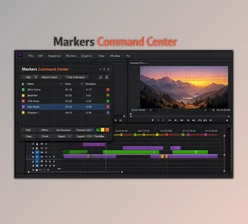
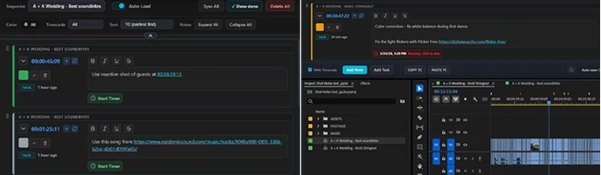
Color-Coded Notes with Clickable Timecodes
One of the most useful features is the ability to create color-coded notes linked directly to timeline markers. Editors can:
- Add feedback comments.
- Save creative ideas.
- Organize revisions by color.
- Jump instantly to specific timeline positions.
- Attach clickable web links for references.
Because notes stay connected to timeline markers, feedback remains organized even during complex editing sessions.
Real-World Example
A documentary editor can create separate color categories for interviews, music cues, visual effects, and client revisions. Finding a specific note later becomes quick and effortless.
Smart Navigation and Timeline Synchronization
As edits evolve, markers often shift throughout the timeline.
ShotNotes helps maintain organization by keeping notes synchronized with markers and allowing editors to quickly navigate between comments, references, and timeline events.
This reduces confusion during long projects and helps maintain editing momentum.
Real-World Example
While working on a feature-length project, editors can instantly jump between dozens of revision notes without manually searching through hours of footage.
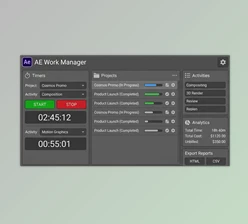
Built-In Tasks and Time Tracking
ShotNotes goes beyond simple note-taking by introducing timed tasks. Editors can:
- Create editing tasks.
- Measure how long specific activities take.
- Monitor productivity.
- Review activity logs.
- Analyze multiple editing sessions.
Understanding where time is spent helps teams optimize workflows and improve project planning.
Real-World Example
A freelance editor can track the time spent on color correction, audio cleanup, and motion graphics separately, making future project estimates more accurate.
Export Notes, Tasks, and Reports
ShotNotes allows editors to export their editing tasks, notes, and reports.
Editors can export editing project notes, editing task reports, editing activity logs, project JSON files, and CSV time-tracking reports.
These editing project reports will allow editors to share their editing projects with team members, clients, and management.
Real-World Example
Production companies that work on numerous editing projects can use ShotNotes reports to manage their editing projects and turn them into editing project management companies.

Professional Tips for Better Results
Create a Color System Early
Create a color system for your editing project early so that editing feedback and ideas are color-coded and easily found. This will save editors and teams significant time editing projects.
Use Tasks for Repetitive Work
Use editing tasks to track repetitive editing activities so editors can gain an understanding of how long certain editing tasks take within the editing project.
Attach Reference Links
Attach links to reference content to editing tasks and notes within your editing project so all reference resources are accessible from within the editing software.
Review Activity Logs Regularly
Editing activity logs will show editing tasks and how editors spent time on them during the editing project. Reviewing editing tasks and activity logs can show editors where they can improve their editing schedule for future projects.
Keep Notes Short and Actionable
Editing project notes should be short so that editing team members and editors can easily read and understand the comments when viewing them within the editing project.
Final Thoughts
Video editing is more than just a skill that allows editors to produce videos. It is a project management skill set with editing project tasks and feedback that editors must manage well.
ShotNotes for Premiere Pro was created to help editors maintain all editing project information directly within the editing software they use daily.
With ShotNotes, editors will have better editing project organization and

Files Password : gfxplugin.com OR 123456