Downloadable Files
You can download Smart Fill for free at the end of this page.
✨ A Smarter Way to Fill Geometry in Blender
If you’ve ever struggled with filling gaps or connecting edges in Blender, you’re not alone. What if one single key could intelligently decide the best way to fill your selection? That’s exactly what Smart Fill does.
It takes Blender’s simple F key and turns it into a powerful, context-aware modeling assistant that saves time and reduces frustration.
🔍 What is Smart Fill and Why It Matters
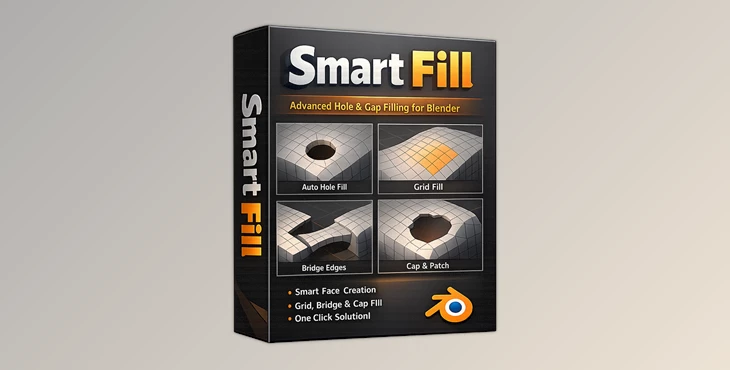
Smart Fill works by automatically detecting which option is the best way to fill your selected geometry in Blender. You can currently choose between a variety of fill options in Blender, including Fill, Grid Fill, and Bridge Edge Loops.
However, Smart Fill will automatically select the best of those options when you press the F key.
Real-World Use Cases:
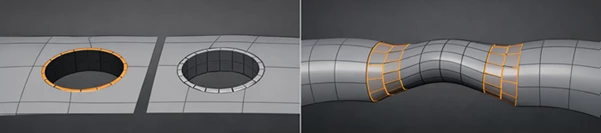
- Filling holes in meshes quickly without switching tools
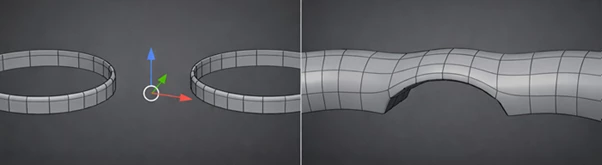
- Connecting two edge loops seamlessly for clean topology
- Creating faces or grids with minimal effort
- Repeating previous operations instantly for consistency
Why It Improves Your Workflow:
Because Smart Fill removes decision-making friction. Instead of interrupting your flow to choose the right tool, it adapts to your selection automatically—making modeling faster, smoother, and more intuitive.
🚀 Professional Tool Introduction
Smart Fill is compatible with Blender 4.2 and newer versions (via the extension system), but also features support for versions 2.77 through 2.93 (v1.4.0).
🔧 Features
1. Context-Sensitive Fill (All in One Key)
Pressing F dynamically switches between:
- Make Edge/Face
- Grid Fill
- Fill
- Bridge Edge Loops
This means fewer clicks and faster modeling decisions. 2. Smart Bridging System
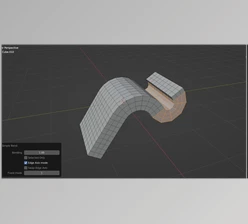
- Select two edge loops → press F to bridge them
- Press F again → automatically cap the loops
- Works even when selecting two faces
3. Interactive Control After Bridging
- Ctrl + MMB Scroll → Add loop cuts
- Shift + MMB Scroll → Twist the result
This gives you real-time control without opening extra panels.
4. Popup Settings & Future Modal System
A pop-up dialog appears after pressing F (optional), letting you adjust settings directly in the viewport. Future versions aim for an even smoother on-screen control system.
5. Repeat Last Operation Easily
Select two faces and repeat your last action with the same values—perfect for consistent modeling patterns.
6. Compatibility
Fully compatible with the popular F2 addon, so it integrates nicely into existing workflows.
🎯 Practical Example
Imagine modeling a complex surface with multiple holes. Instead of switching between fill tools repeatedly, you simply:
- Select → Press F → Adjust → Done
This reduces workflow interruptions and keeps your focus on creativity.

💡 Pro Tips for Better Results
- Use Shift + Mouse Rotation when filling tricky holes to fine-tune results
- After bridging, always experiment with loop cuts and twist controls for cleaner topology
- Enable repeat mode in preferences to speed up repetitive tasks
- Combine Smart Fill with good edge flow practices for professional-quality meshes
👉 Small adjustments using the scroll controls can make a huge difference in final mesh quality.
🔚 Final Thoughts
Smart Fill is one of those tools that feels simple—but once you use it, you can’t go back. By turning a basic shortcut into a smart, adaptive system, it dramatically improves modeling speed and efficiency. Whether you’re a beginner or a professional, this addon helps you stay focused on creating instead of managing tools.