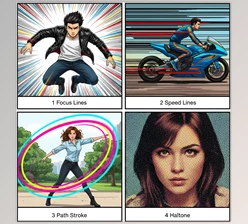
Stiff and Artificial Movements
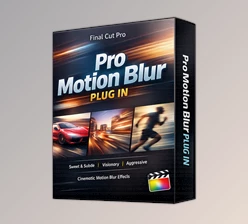
Are you familiar with the workflow of the Ultra MotionBlur Plugin? Have you ever created a video or animation where everything looks perfect, but the movements feel stiff and digital? Text moves too quickly, objects shift, the camera pans—but everything appears overly sharp and frame-by-frame. This issue is especially noticeable in short projects, reels, or commercials, breaking the natural feel of motion.
What is Motion Blur and Why is it Needed?
Motion Blur essentially makes the eye perceive the path of fast-moving objects. It ensures movements no longer feel stiff or artificial and makes their speed feel more realistic.
A practical example includes:
- Text motion in motion graphics
- Fast camera pans
- Transitions or moving objects
Without Motion Blur, all of these look very “computer-generated,” as if the frames were just stacked together.
How to Achieve It Without Professional Tools
In DaVinci Resolve, there are a number of ways to replicate Motion Blur, but ultimately, it's problematic, annoying, time-consuming, and not always effective. Generally, it involves either:
Optical Flow:
Great for smooth transitions between frames, but there are a lot of settings (that seem confusing), and with moving speed, it's not always effective; with motion/writing, it can be unnatural and jittery.
Frame Blending:
a combination of frames blended together to show a sort of artificial motion blur; it's not effective in determining how much blur or in which direction, and it's hit or miss. Either it blurs too much or barely anything at all.
Fusion (manual):
This is the best one in terms of control and power. You can do hand adjustments to curves for a more natural-looking blur. However, it takes the longest time, and you need to be super experienced, and it's never the same for each clip.
Thus, without professional software alternatives, these options are either time-consuming, confusing with too many settings for little correction, or not enough control to determine how much is needed. Thus, for quick projects, motion graphics, and reels, they are ineffective.
Ultra MotionBlur Plugin by Carvinci | The Easy and Fast Solution
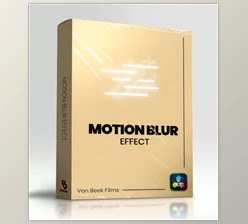
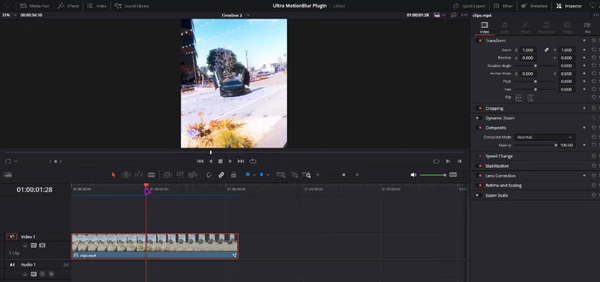
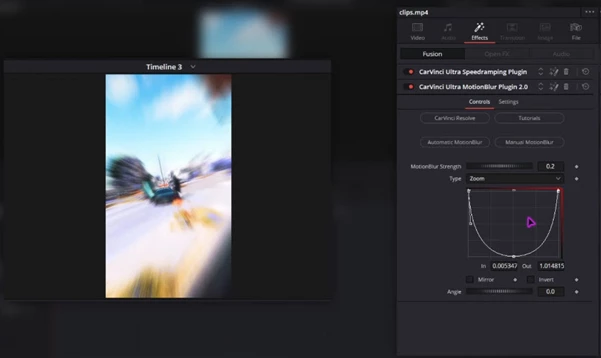
This is where the Ultra MotionBlur Plugin saves the day. This DaVinci Resolve plugin enables you to apply industry-standard motion blur to your work without having to enter Fusion or play around with settings. Install the DRFX file and drag & drop the effect onto your clips, and you're good to go.
Key Features That Make Workflow Easier:
- Complete Control of Motion Blur Strength:
You apply the blur to the exact strength you want—not weak, not exaggerated. - Ease of Curb Adjustment for Natural Motion:
Simulates motion paths with ease, particularly for quicker text or movement. - Works on Text, Transitions, and Moving Elements:
One click and everything moves—text (animated), logos, transitions, anything. - Time and Intensive Application Saves:
No more going into Fusion for hours or applying/adjusting Optical Flow settings—everything is applied effectively in one step. - Natural and Effective Output:
Even for quicker projects and reels, motion looks natural and resourced—none of that digital awkwardness.
With the Ultra MotionBlur Plugin, everything becomes simple and fast—no more hours spent on complex adjustments. Just a few clicks and your project looks smooth, natural, and professional.
Tips for Better Results
Here are some simple but highly practical tips to make Motion Blur look natural and professional:
- Choose effect intensity based on motion:
Use less blur for text to keep it readable; increase it for fast movements or large objects for realism. - Adjust motion curves smoothly:
Smooth paths between frames make motion look natural and remove digital stiffness. - Check before and after at 100% zoom:
Small screens may look fine, but the final render can differ. - Don’t apply Motion Blur everywhere:
Add blur only where needed to keep movements natural and engaging. - Test with references:
Create a small test project to find the best intensity and curve settings for your style.
Small Details, Big Impact
Motion Blur may seem like a minor effect, but when it's not there, it's immediately noticeable. Without it, things move like robots...even though it's a perfectly rendered animation or motion graphic.
With the help of the Ultra MotionBlur Plugin, things move naturally, seamlessly, and with a look and feel realistic, even without venturing into Fusion and complex settings.
Ultra MotionBlur Plugin is especially useful for fast projects, reels, motion graphics, and commercials, where time is limited but natural and professional motion is required. Even small elements like animated text, logos, or transitions move smoothly with one click. In short, this small effect—motion blur—can make a huge difference in the feel and quality of your project, making your work believable and visually appealing.

Files Password : gfxplugin.com OR 123456