Downloadable Files
You can download ON1 Resize AI for free from the end of this page.
Enlarge Your Photos Without Losing the Details
Increasing the size of a photo sounds simple, but anyone who has worked with low-resolution images knows what usually happens: edges become softer, textures disappear, and the image can quickly start looking blurry or artificial.
ON1 Resize AI is designed to solve exactly this problem. It combines advanced AI-powered super-resolution with the proven Genuine Fractals® enlargement technology to upscale photographs while preserving fine details, sharp edges, and natural-looking textures.
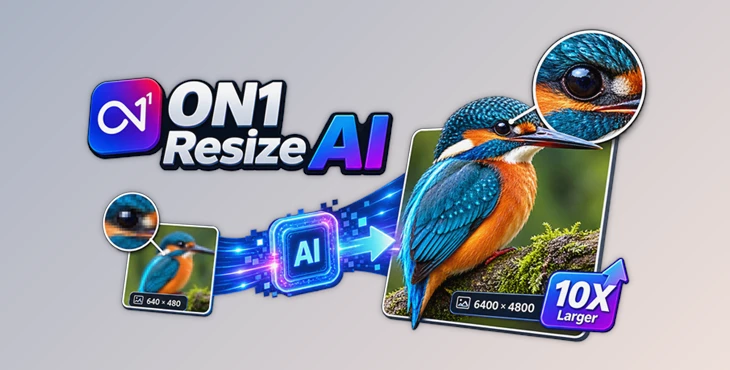
Images can be enlarged up to 10x, making the software useful for everything from recovering a tight crop to preparing photographs for large-format printing. Instead of simply stretching existing pixels, Resize AI intelligently works to maintain—and in some situations reconstruct—the visual information needed for a convincing high-resolution result.
What Is AI Image Resizing?
Traditional image resizing enlarges an image by filling in pixels between existing pixels. This works well for modest increases in size. However, for large increases in size, the image can start to become blurry, have visible artifacts, and lose detail.
AI image resizing uses neural networks to understand the image and aid in either preserving or creating image detail as the image is enlarged.
AI image resizing can be helpful for many image types, including cropped images, aged images, compressed images, AI created images, and images that need to be printed at a much larger size.
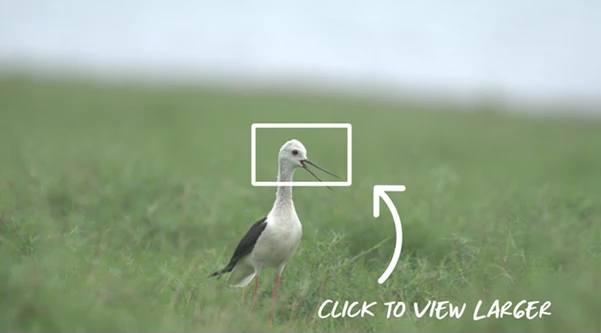
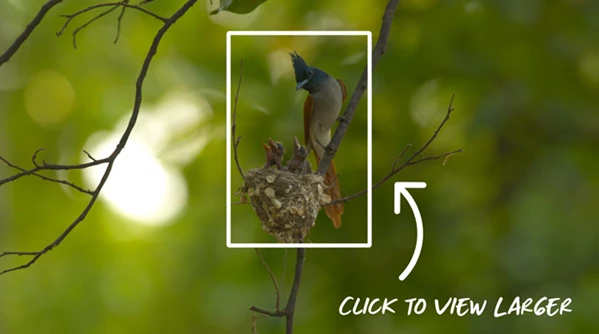
For example, let’s say you took a photo of wildlife and only a small portion of the image contained the animal of interest. After heavily cropping the image, there may not be enough resolution in the image to successfully print at a large size. With ON1 Resize AI, however, the cropped image can be enlarged while still helping to preserve edge detail, texture, and image sharpness.
This technique can be used to restore old photos as well as to prepare small images for use on canvases, posters, gallery art, and the like.
ON1 Resize AI: Professional Enlargement Made Easier
ON1 Resize AI 2026 combines AI-based enlargement with Genuine Fractals® technology, which has been used by photographers for more than two decades.
The software is built not only to make images larger but also to make the entire enlargement and printing workflow easier. You can resize individual photographs, process hundreds of files in batches, prepare canvas prints, create tiled mural output, and even work with layered Photoshop documents.
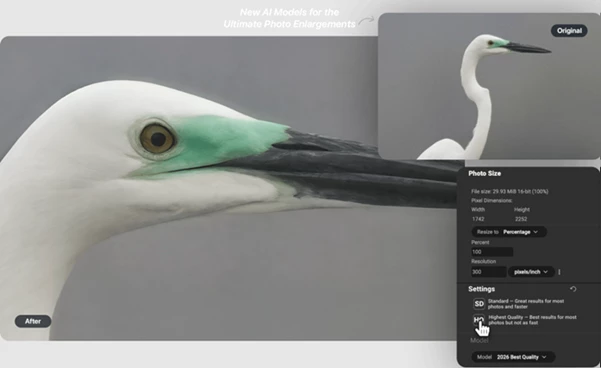
The 2026 version also introduces new AI models that allow users to choose between maximum reconstruction quality and faster processing depending on the project.
Features
New Highest Quality Model
The new Highest Quality Model uses a next-generation diffusion-based AI approach to rebuild missing details with greater realism.
It is particularly useful for small or heavily cropped images where maintaining fine textures and clean edges is important. This makes it a strong choice for fine-art enlargements, gallery-quality prints, and photographs where maximum detail is more important than processing speed.
New Standard Model
Not every project requires the most computationally demanding enlargement method. The Standard Model focuses on speed, reliability, and efficient processing.
It is designed for large batches, compressed images, high-ISO photographs, and computers with limited graphics performance. This makes it especially practical when hundreds of files need to be resized and exported consistently.
Intelligent Photo Input Options
Resize AI 2026 lets you identify whether your source image is standard or high quality.
Based on the selected photo type, the software can recommend an appropriate AI model. This reduces the guesswork involved in choosing enlargement settings and helps users find a suitable balance between processing speed and image quality.
Up to 10x Image Enlargement
One of the core capabilities of ON1 Resize AI is the ability to enlarge photographs up to 10x while maintaining sharpness and fine details.
This can be especially helpful when enlarging tight crops, preparing smaller photographs for large prints, upscaling AI-generated imagery, or working with older low-resolution photos.
Smart Sharpening and Resolution Presets
Different printers and output sizes can require different sharpening and resolution settings.
Smart sharpening and resolution presets help optimize images for their intended output, reducing the amount of manual adjustment required before printing.
Print-Ready Output
Resize AI is built with large-format photo printing in mind. Images can be enlarged to the required dimensions while preserving clarity and detail for poster-sized and other large prints.
Soft proofing also allows you to preview how an image should appear when printed, giving you an opportunity to evaluate the result before committing to the final output.
Tiling for Large Murals
Extremely large images do not always fit onto a single printable sheet.
The tiling feature divides oversized photographs into multiple printable sections. These sections can then be assembled to create murals and other large-scale displays.
Gallery Wrap Margins
For photographers preparing images for canvas printing, Resize AI can automatically create gallery wrap margins.
This simplifies the process of preparing an image to wrap around the edges of a canvas without manually extending or rebuilding the photograph.
Powerful Batch Processing
If you regularly resize large collections of images, processing them individually can become repetitive.
ON1 Resize AI can batch resize and export hundreds of images using predefined export settings. You can configure file names, formats, destinations, gallery wrap margins, watermarks, and other output options before processing the entire group.
Layered Photoshop File Support
Resize AI can work with layered Photoshop files while maintaining important document elements such as masks, text, alpha channels, and adjustment layers.
It supports RGB, CMYK, Grayscale, and LAB files, making it suitable for more advanced professional workflows where flattening the original Photoshop document would not be desirable.
Plugin Integration
ON1 Resize AI can also work as a plugin for Adobe Lightroom, Adobe Photoshop, and Capture One.
Lightroom and Capture One users can take advantage of batch-processing and resizing options, while Photoshop users can work with more complex layered documents directly within their existing workflow.
Where Can ON1 Resize AI Be Useful?
The software can fit into many photography and digital imaging workflows.
A landscape photographer might use it to turn a carefully cropped photograph into a large wall print. A portrait photographer could enlarge an image for a canvas while adding gallery wrap margins. An artist working with AI-generated images could upscale smaller outputs before printing them. Someone restoring family photographs could increase the resolution of older scans while trying to preserve important facial and texture details.
It can also be useful in commercial environments where hundreds of photographs need to be exported at consistent dimensions. Instead of resizing each image manually, batch processing can handle repetitive output tasks much more efficiently.
Tips for Better and More Natural Enlargements
Always start with the best quality source image available. While AI can recreate and retain a great deal of image detail, a cleaner source image will provide better data for image enlargement.
Select the appropriate AI model for the task at hand. When the highest image quality is desired, such as for a large gallery image or a heavily cropped image, use the Highest Quality Model. For hundreds of images, noisy images, or limited GPU resources, use the Standard Model.
Don't judge image sharpness only at high levels of zoom. If the image is intended for printing, view the image at realistic print sizes and make use of soft proofing to get an idea of how the image will look when printed.
When printing to canvas, leverage the gallery wrap margins instead of stretching the image itself. When printing extremely large images or murals larger than one sheet, use tiling.
When you have multiple images that all need to be processed the same way, utilize batch presets. Define size, format, naming, and output location once and save both time and project integrity.
Bigger Images Without the Usual Quality Compromise
ON1 Resize AI is designed to address a very common situation in digital imaging - enabling users to significantly increase the size of an image while retaining the quality that makes it appear natural.
Using Genuine Fractals®, neural-network super-resolution, diffusion-based detail restoration, and more, Resize AI can be used to restore heavily cropped images and create large images for gallery use.
Resize AI 2026 includes multiple AI models to provide more options. Users can focus on maximizing detail in specific images or prioritize speed when processing many images.
Image resizing can become much simpler and more reliable for photographers, digital artists, designers, and others who frequently need to greatly enlarge images by exploring the various AI models, print options, batch processing capabilities, and integration into professional workflows.
 ON1 Resize AI 2026.5.2 (v20.5.2.19304 for Mac).rar (Size: 557.7 MB - Date: 9/30/2026 12:36:10 PM)
- ON1 Resize AI 2026.5.2 (v20.5.2.19304 for Win).rar (Size: 276.7 MB - Date: 9/30/2026 12:35:50 PM)
- ON1 Resize AI 2026.5.1 v20.5.1.19148 (Win).rar (Size: 276.7 MB - Date: 9/2/2026 1:00:26 PM)
- ON1 Resize AI 2026.5.1 v20.5.1.19148 (Mac).rar (Size: 557.5 MB - Date: 9/1/2026 12:37:56 PM)
- ON1 Resize AI 2026.5 v20.5.0.19062 (Mac).rar (Size: 557.1 MB - Date: 8/15/2026 1:35:40 PM)
- ON1 Resize AI 2026.5 v20.5.0.19062 (Win).rar (Size: 207.7 MB - Date: 8/15/2026 1:35:19 PM)
- ON1 Resize AI 2026.5 v20.5.0.19010 (Mac).rar (Size: 557.3 MB - Date: 7/29/2026 11:21:42 AM)
- ON1 Resize AI 2026.5 v20.5.0.19010 (Win).rar (Size: 207.6 MB - Date: 7/28/2026 10:36:04 AM)
- ON1 Resize AI 2026.4 v20.4.1.18862 (Mac).rar (Size: 566.2 MB - Date: 6/27/2026 11:50:58 AM)
- ON1 Resize AI 2026.4 v20.4.1.18862 (Win).rar (Size: 200.6 MB - Date: 6/27/2026 11:50:37 AM)
- ON1 Resize AI 2026.3 v20.3.1.18535 (Mac).rar (Size: 549.9 MB - Date: 3/28/2026 1:02:42 PM)
- ON1 Resize AI 2026.3 v20.3.1.18535 (Win).rar (Size: 192.1 MB - Date: 3/28/2026 1:02:22 PM)
- ON1 Resize AI 2026.3 v20.3.0.18187 (Mac).rar (Size: 549.9 MB - Date: 2/26/2026 10:24:47 AM)
- ON1 Resize AI 2026.3 v20.3.0.18187 (Win).rar (Size: 191.9 MB - Date: 2/26/2026 10:24:27 AM)
- ON1 Resize AI 2026.2 v20.2.1.17865 (Mac).rar (Size: 551.0 MB - Date: 12/23/2025 1:57:39 PM)
- ON1 Resize AI 2026.2 v20.2.1.17865 (Win).rar (Size: 192.7 MB - Date: 12/23/2025 1:57:20 PM)
- ON1 Resize AI 2026.2 v20.2.0.17850 (Mac).rar (Size: 551.1 MB - Date: 12/20/2025 12:56:57 PM)
- ON1 Resize AI 2026.2 v20.2.0.17850 (Win).rar (Size: 192.6 MB - Date: 12/18/2025 12:46:37 PM)
- ON1 Resize AI 2026.1 v20.1.0.17740 (Mac).rar (Size: 554.0 MB - Date: 11/22/2025 3:10:08 PM)
- ON1 Resize AI 2026.1 v20.1.0.17740 (Win).rar (Size: 194.3 MB - Date: 11/20/2025 12:14:07 PM)
- ON1 Resize AI 2026 v20.0.0.17265 (Mac).rar (Size: 549.0 MB - Date: 8/9/2025 1:55:35 PM)
- ON1 Resize AI 2026 v20.0.0.17265 (Win).rar (Size: 248.4 MB - Date: 8/9/2025 1:55:16 PM)
- ON1 Resize AI 2026 v20.0.0.17231 (Mac).rar (Size: 541.6 MB - Date: 8/7/2025 12:35:28 PM)
- ON1 Resize AI 2026 v20.0.0.17231 (Win).rar (Size: 248.4 MB - Date: 8/6/2025 12:42:39 PM)
Files Password : gfxplugin.com OR 123456