Downloadable Files
You can download Illustrator for free from the product section at the bottom of this page.
Turn Creative Ideas Into Sharp, Scalable Artwork
A sketch can transform into a logo. Basic art can transform into an illustrated piece. A line can transform into an icon, a pattern, a package, a complete brand, or even a simple logo. This ability to transform is at the heart of Illustrator.
Illustrator is a professional graphic design program based on vector art. Unlike programs that constrain artwork to a specific resolution, Illustrator enables you to create exact lines, shapes, text, and illustrations that can be scaled up or down without any loss in quality. Illustrator can be used for small stickers, social art, packaging, posters, and also for giant billboards.
Illustrator is great for logo design, creating illustrations, producing promotional art, and exploring text designs. You are given a high degree of control over your artwork but also retain the flexibility to edit your design.
Why Vector Graphics Make Such a Difference
Vector graphics are ideal for designs that are required to be used in a variety of sizes and formats. Unlike pixel graphics, vector artwork is made up of editable points, paths, shapes, curves, and lines.
For example, if you are designing a logo that is to be used on a business card today and a billboard tomorrow, vector artwork allows that same logo to be scaled from very small to very large, whilst retaining the quality and sharpness of the image.
Due to this flexibility, Illustrator can be used for a wide range of design applications including:
- Logos, icons and full brand identities
- Business cards and promotional items
- Social media images and online ads
- Shirt and packaging designs
- Custom patterns
- Typography based designs
- Detailed digital art
- Geometric shapes
- Print and large format artwork
- 3D and other depth artwork
Editing points, paths, shapes, colours and objects allows you to continue refining artwork rather than having to start over completely when edits are required.
Illustrator – From Rough Concepts to Finished Designs
In Illustrator, design can incorporate drawing, typography, selection, transformation, colour, texture, and AI-enabled design tools all in one application.
You can begin with basic shapes. You can draw by hand using accurate vector tools. You can import an existing image. You can work with generated images. And you can continue editing until the final result matches your initial concept.
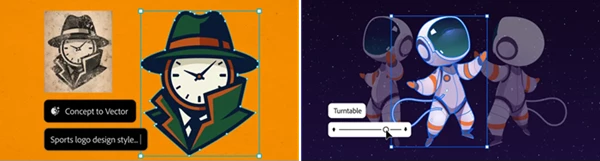
Using Concept to Vector, a low resolution concept or sketch can be transformed into editable vector art. Rather than re-drawing a concept, you can edit the outlines of a concept and try alternate designs.
Illustrator also supports viewing artwork in alternate ways, creating patterns and vector art, trying alternate colors, continuing designs, and creating more multidimensional artwork.
Features
Precise Vector Drawing
The Pen tool gives you detailed control over straight and curved paths through editable anchor points. When you want a more intuitive drawing experience, the Curvature tool makes it easier to construct smooth C-shaped and S-shaped curves.
The Pencil tool adds another flexible way to draw, making it possible to move naturally between precise construction and freer linework.
Shape Building and Geometric Design
Simple shapes can become much more complex artwork with the Shape Builder tool. You can combine different forms to construct icons, logos, geometric illustrations, and other custom graphics.
Because the resulting elements remain editable, experimenting with proportions and compositions becomes much easier.
Powerful Selection Tools
Illustrator provides several ways to select exactly what you need.
The Selection tool handles entire objects, while Direct Selection lets you adjust individual points and path segments. Group Selection can isolate an element inside a larger unified design, and Magic Wand makes it possible to select objects with similar characteristics simultaneously.
For less structured selections, the Lasso tool lets you draw freely around multiple elements.
Flexible Typography
Typography can become an active part of the illustration rather than simply sitting on top of it.
The Type tool handles everything from individual letters to complete paragraphs, while Type on a Path lets you bend words along lines and shapes. Vertical Type provides another layout option for designs that need text arranged in a vertical direction.
These capabilities are particularly useful for logos, posters, packaging, and typography-focused artwork.
Generative Vector Tools
Illustrator includes generative features designed to accelerate exploration without removing editability.
Text to Vector Graphic can generate editable vector scenes, subjects, or icons from text prompts. Generative Recolor lets you describe a visual idea and explore corresponding color combinations.
Text to Pattern can create seamless custom patterns that can then be edited, scaled, saved to the swatch library, and reused throughout a design.
Generative Shape Fill provides additional possibilities for filling shapes, while Generative Expand helps resize artwork, extend graphics, add bleeds, and explore expanded versions of existing concepts.
Turn Rough Ideas Into Editable Vectors
Concept to Vector provides a useful bridge between early ideas and polished vector artwork. You can bring a sketch or low-resolution image into Illustrator and begin refining its outlines rather than starting completely from scratch.
This can make the early design stage faster while still giving you control over the resulting graphics.
Explore Different Perspectives
The Turntable feature helps you view artwork from different angles without manually redrawing every perspective.
It can be particularly useful when exploring how a design looks from multiple viewpoints or when preparing artwork for presentations and motion-oriented content.
Gradients and Detailed Color Control
The Gradient tool can create linear, radial, and freeform transitions, allowing flat shapes to gain greater visual depth.
Illustrator also includes gradient presets and improved color controls for fine-tuning individual shades and transitions.
Mesh, Blend, and 3D Effects
For artwork that needs additional dimension, the Mesh tool can simulate complex color transitions and light reflections.
The Blend tool morphs colors and shapes between multiple objects, creating smooth intermediate forms and graduated effects.
The 3D and Materials panel goes further by adding lighting, textures, and dimensional effects that can transform flat 2D artwork into more realistic 3D-style designs.
Better Font Management
The enhanced Font Browser makes large font collections easier to manage. You can filter fonts, organize them into libraries, synchronize those libraries across Adobe apps, and browse available fonts from a centralized location.
For branding and typography-heavy projects, this can significantly reduce the time spent searching for the right typeface.
Artboards for Organized Projects
With the Artboard tool, multiple canvases of different sizes can live inside the same project.
For example, you could develop a logo, business card, packaging graphic, and digital advertisement together while giving each design its own appropriately sized artboard.
Transform Artwork Without Losing Quality
Vector artwork can be rotated, reflected, resized, and repositioned while remaining editable.
The Rotate tool changes an object’s angle around a fixed point, Reflect creates mirrored versions, and Scale lets you dramatically change artwork dimensions without sacrificing vector quality.
The Scissors tool provides more precise structural editing by splitting lines and shapes at anchor points.
Measure Designs Precisely
The Dimension tool adds linear, angular, and radial measurements directly to artwork. Guide units, fonts, and other measurement properties can also be customized.
This is useful whenever accurate dimensions matter as much as visual appearance.


Small Techniques That Can Improve Your Illustrator Workflow
Starting with the basic shape and composition can create a very effective workflow in Illustrator. Once the composition is roughly in place, focus on refining curves and anchor points. Doing this ensures that experimentation can occur at the beginning without being hindered by unnecessary detail.
For more complicated designs, try grouping and placing related items on separate artboards or groups. This allows for easier manipulation of only the desired object using Direct Selection or Group Selection without accidentally affecting the other items in the design.
Try to avoid adding unnecessary anchor points when working with curved paths. Often fewer anchor points, thoughtfully placed, can create more natural and cleaner curves than a path overloaded with anchor points.
When using gradients, blends, 3D, or meshes, they should enhance the shape and not cover up the shape. Begin with a defined shape and a limited amount of color. Then add depth gradually.
Generative tools can also be used for exploration. Generate a variety of patterns, colors, fills, or vector art. Then manually tweak the most desirable generated art. This will give your final piece a sense of purpose and allow it to fit in context with the other elements in your design.
Finally, test your important artwork at various sizes. A detailed icon may look great at a large size, but may become difficult to read at a small size. Because Illustrator allows for easy scaling, testing artwork at various sizes can aid in the creation of artwork that looks great at both large and small sizes.
One Design, Countless Possibilities
Illustrator brings drawing, typography, color, pattern creation, transformation, selection, 3D effects, and generative tools into a single vector-focused workflow.
Its biggest advantage is flexibility: artwork can remain editable while moving from an initial sketch to a polished illustration and then into different sizes and formats. Whether you are creating a small icon, a custom logo, packaging artwork, an illustration, or graphics for a billboard, the same core tools provide detailed control over the final result.
By combining precise traditional vector tools with faster ways to generate, recolor, expand, and experiment with artwork, Illustrator gives designers plenty of room to explore ideas while still maintaining control over the details.
- Win (24.6 GB - 9/24/2026 11:41:39 AM)
 Adobe Illustrator 2026 (v30.8.2 for Win).rar (Size: 3.8 GB - Date: 9/24/2026 11:37:32 AM)
- Adobe - Illustrator 2026 v30.8.1 (Win) .rar (Size: 3.8 GB - Date: 9/1/2026 12:38:11 PM)
- Adobe - Illustrator 2026 v30.8 (Win).rar (Size: 3.5 GB - Date: 8/25/2026 2:32:10 PM)
- Adobe - Illustrator 2026 v30.7 (Win).rar (Size: 3.3 GB - Date: 8/3/2026 1:39:30 PM)
- Adobe - Illustrator 2026 v30.6 (Win).rar (Size: 3.0 GB - Date: 6/23/2026 11:48:10 AM)
- Adobe Illustrator 2026 v30.5.1 (Win).rar (Size: 3.5 GB - Date: 6/2/2026 11:32:33 AM)
- Adobe Illustrator 2024 v28.7.1 (Win).rar (Size: 3.7 GB - Date: 10/16/2024 7:28:45 PM)
- Mac (12.4 GB - 6/2/2026 11:42:48 AM)
- Adobe - Illustrator 2026 v30.1 (Mac).rar (Size: 4.1 GB - Date: 1/5/2026 1:33:28 PM)
- Adobe - Illustrator 2025 v29.8.1 (Mac).rar (Size: 2.5 GB - Date: 9/23/2025 1:32:34 PM)
- Adobe.Illustrator.CC 24.2.3.521 Mac.rar (Size: 2.1 GB - Date: 10/16/2024 11:56:31 PM)
- Adobe Illustrator 2024 v28.3 (Mac).rar (Size: 3.8 GB - Date: 10/16/2024 7:28:25 PM)
Files Password : gfxplugin.com OR 123456

5/7/2025 12:06:39 PM
win
After installing, run the files in the Patch folder.
5/7/2025 3:50:35 AM
Win or Mac
win
1/20/2025 3:21:55 PM
how to instaal
Win or Mac
1/20/2025 7:06:19 AM
how to instaal